Mobile SqeKyc SDK
SqeKyc SDK is an SDK which provides functionalities to make the KYC process be easier. This document will guide you to integrate SqeKyc SDK in your project.
Mobile SDK
Get your Application Keys
When you integrate KYC sdk, you will need some of the details from it to communicate with it. You can get this details from any of our engineering/product representative.
You will need the following for each env (staging and production):
-
Client Id
-
SQE SDK Config file
- File Format: [Client Id].sqesdk.config
Configure KYC with Expo Project
For expo project, we have provided config-plugin files to make integration of native modules can be done smoothly.
-
Add the
sqesdk-plugin.jsandsqekyc-plugin.jsconfig-plugin files which have been provided to your app config. -
You can run npx expo prebuild to apply config-plugin
Install SQEKYC React Native SDK
Run the following command within your project directory to install the KYC React Native SDK:
Yarn :
yarn add @squantumengine/react-native-sqekyc
or NPM :
npm install @squantumengine/react-native-sqekyc
Please note: use the exact version, such as "1.0.2", during SDK installation.
Dependencies Installation
In the SDK there are some of the libraries that need to be installed in your app:
Yarn
yarn add react-native-compressor react-native-pdf react-native-blob-util react-native-signature-canvas react-native-webview
- In your app.json, in plugin part add react-native-compressor
Expo Install
npx expo install react-native-compressor react-native-pdf react-native-blob-util react-native-signature-canvas react-native-webview
- In your app.json, in plugin part add react-native-compressor
plugin: ["react-native-compressor"]
Configure the KycProvider Component
To integrate SQEKYC with your Expo app, you can wrap the root component with KycProvider which you can import from the SDK and you have to fill the env props with supported environment such as : production or staging. It also exposes helper methods to do KYC process which you can access using the useKyc() hook.
You also need to pass your client-id, this value can be asked to SQE team. ClientID is mandatory and can’t be blank.
return (
   <KycProvider clientId={'your-client-id'} isEnableSDK={true/false}>
      <App/>
    </KycProvider>
  );
The KycProvider component takes the following props as input:
- clientId: Which you can get from the SimasID engineering/product representative.
- isEnableSDK: This can disable the KycProvider and render children without context. It defaults to
true, making all methods from sqekyc unavailable.
KycProvider stores the authentication state of your users and the state of the SDK — whether SimasID is ready to use or not. It also exposes helper methods to log in and log out your users, which you can access using the useKyc() hook.
Configure Android Project
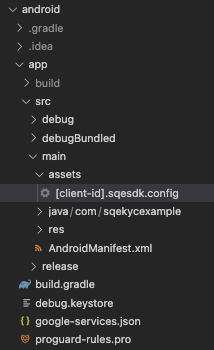
Add SDK config file in Android project
This configuration file holds encrypted settings tailored to each client. Kindly integrate the file in the Android project by including the specified configuration file. This files should be stored in assets folder of the app.
Two configuration files are supplied—one for staging and one for production. To identify the correct environment, refer to the configuration file name, as the Client Id varies for each environment.
Add Native SDK dependency
React Native SDK depends on Android Native SDK which stored in our local Maven repository. For this to work you need to specify the url to the repository in android build.gradle file:
allprojects {
    repositories {
        maven {
            url "file://${rootDir}/../node_modules/@squantumengine/react-native-sqekyc/android/repo"
        }

        google()
        mavenCentral()
        jcenter()
    }
}
Configure iOS Project
Add some configuration in Podfile
If you are not using Sentry and Datadog library in your app
Add this pre_install hook in your Podfile:
target '<Your Target Name>' do

  # Put below `use_react_native` method

  pre_install do |installer|
    $dynamic_frameworks = [
      'DatadogCore',
      'DatadogInternal',
      'DatadogLogs',
      'Sentry',
      'FBLPromises',
      'GoogleDataTransport',
      'GoogleToolboxForMac',
      'GoogleUtilities',
      'GoogleUtilitiesComponents',
      'GTMSessionFetcher',
      'nanopb',
      'PromisesObjC'
    ]
    installer.pod_targets.each do |pod|
      if $dynamic_frameworks.include?(pod.name)
        puts "Overriding the build_type method for #{pod.name}"
        def pod.build_type;
          BuildType.new(:linkage => :dynamic, :packaging => :framework)
        end
      end
    end
  end

  post_install do |installer|
    $datadog_frameworks = [
      'DatadogCore',
      'DatadogInternal',
      'DatadogLogs'
    ]
    installer.pods_project.targets.each do |target|
      if $datadog_frameworks.include?(target.name)
        target.build_configurations.each do |config|
          config.build_settings['BUILD_LIBRARY_FOR_DISTRIBUTION'] = 'YES'
        end
      end
    end
  end

end
If you are using Sentry or Datadog library in your app
// still not supported yet, please contact sdk developer
Usage
Liveness Check V2
To start liveness v2 check from your app, you can use this method:
startLivenessCheckV2(accessToken, refUserId, detectionTimeOut)
Example :
import { useKyc } from '@squantumengine/react-native-sqekyc';

const LivenessV2Button = () => {
 const { startLivenessCheckV2 } = useKyc();

 const startLivenessCheckV2 = () => {
  startLivenessCheckV2(accessToken, refUserId, 5)
    .then((data) => {
      // do something with result
    })
    .catch((error) => {
      // do something with error codes
    });
  };

  return (
    <button onClick={() => startLivenessCheckV2()} title='Start Liveness V2'/>
      Start Liveness V2
    </button>
  );
};

export default LivenessV2Button;
Request Parameters
| Field | Description |
|---|---|
accessToken | SQEID authorization token |
refUserId | A unique identifier for the specific user which later will be used for set up the contract and approval a contract |
detectionTimeOut | The liveness check duration defaults to 5 seconds. If the camera fails to detect the user's face within this time frame, an error will be returned indicating that no live face was found. |
Response
{
  "image": /9jMsdf..,
  "manipulation_score": 0.8, // Range: 0.0 - 1.0
  "liveness_score": 0.9, // Range: 0.0 - 1.0
  "transaction_id": "6ab510629-1628-49f8-a5a8-79fa5f" // it's optional
}
Error Response
{
  "source":"local",
  "errors":[
    {
      "code":"1051",
      "field":"",
      "message":"Liveness check has failed on server",
      "detail": {
        "error_details": "Additional details about the error if available/applicable.",
        "image": "/9jMsdf...",
        "manipulation_score": 0.8, // Range: 0.0 - 1.0
        "liveness_score": 0.9, // Range: 0.0 - 1.0
        "transaction_id": "6ab510629-1628-49f8-a5a8-79fa5f" // it's optional
      }
    }
  ]
}
Additional Resource:
For more details on liveness detection and manipulation, Click here for a comprehensive guide.
Error Codes
| Code | Error Message |
|---|---|
| 1000 | Something went wrong! |
| 1041 | Liveness check failed |
| 1051 | Clear obstruction from the face |
| 1052 | Bring your face closer |
| 1053 | Please ensure the shot is well-lit and clear |
| 1054 | Keep one face in the frame |
| 1055 | Unable to detect the face |
| 1056 | Something went wrong! |
| 1057 | Something went wrong! |
| 1058 | Please ensure the shot is well-lit and clear |
| 1059/1076 | The selfie is blur, keep phone steady |
| 1060 | Keep your face straight |
| 1062 | Please ensure to open your eyes |
| 1063 | Please ensure the shot is well-lit and clear |
| 1064/1074 | The selfie is too dark, ensure the photo is well-lit and clear |
| 1065/1075 | The selfie is too bright, ensure the photo is well-lit and clear |
Click here for full documentation error codes from Vida.
Manual Capture
To start manual capture check from your app, you can use this method:
startManualCapture()
Example :
import { useKyc } from '@squantumengine/react-native-sqekyc';

const ManualCaptureButton = () => {
 const { startManualCapture } = useKyc();

 const onStartManualCapture = () => {
  startManualCapture()
    .then((base64SelfieImage) => {
      // do something with base64SelfieImage
    })
    .catch((error) => {
      // do something with error codes
    });
  };

  return (
    <button onClick={() => onStartManualCapture()} title='Start Manual Capture'/>
      Start Manual Capture
    </button>
  );
};

export default ManualCaptureButton;
Response
/9jwbG9yZW0gaXBzdW0gbG9yZW0gaXBzdW0gbG9yZW0gaXBzdW0gbG9yZW0gaXBz0gbG9yZW0gaXBzdW...
Error Response
{
  "source":"local",
  "errors":[
    {
      "code":"UNKNOWN",
      "field":"",
      "message":"Unknown Error",
      "detail": ""
    }
  ]
}
Error Codes
| Code | Error Message | Platform |
|---|---|---|
CAMERA_ERROR | Error on accessing camera | Android |
CANCELED | User canceled | Android | iOS |
UNKNOWN | Unknown error | Android | iOS |
VIEW_CANNOT_PRESENT | View cannot present | iOS |
PERMISSION_DENIED | Camera permission is denied | iOS |
RESIGN_ACTIVE | App is resigned active | iOS |
KYC Validity Check
To do KYC validity check from your app, you can use this method:
doKycValidityCheck(
    accessToken,
    base64KtpImage,
    base64SelfieImage,
    demographicData,
    refUserId,
    timeOut
)
Example :
import { useKyc } from '@squantumengine/react-native-sqekyc';

...
 const { doKycValidityCheck } = useKyc();

 const onKycCheck = () => {
  const result = await doKycValidityCheck(
    accessToken,
    base64KtpImage,
    base64SelfieImage,
    demographicData,
    refUserId,
    10000
  );
 }
...
Request Parameters
| Field | Description |
|---|---|
accessToken | SQEID authorization token |
base64SelfieImage | the selfie image in base64 encoded format |
demographicData | Demographic data is information that refers to statistically socio-economic data, such as mobile, fullName, dob, govId, govIdType. |
refUserId | A unique identifier for the specific user which later will be used for set up the contract and approval a contract |
timeOut | Time out in milliseconds. If not set, then the default value will be used from the base configuration of the SDK. |
Response
| data | |
| base64Image | |
Error Response
| VD_4008 | |
| TIME_OUT | |
General Error Codes
| Code | Description |
|---|---|
VD_1006 | Bad Request from VIDA |
VD_1000 | Internal Server Error from VIDA |
VD_2101 | Outside access hours |
VD_2103 | Authoritative source issue |
VD_2104 | ID data found, but the NIK is inactive |
VD_2106 | NIK is not found |
VD_2109 | Double data, please check with the local authoritative sources. |
VD_2111 | Authoritative sources are busy |
VD_2113 | Authoritative source issue |
VD_2116 | Unknown error in the authoritative source |
VD_2117 | NIK is invalid or not registered in local authoritative source |
VD_2118 | The API quota assigned for the partner is exceeded |
VD_2119 | The API rate limit assigned to the partner is exceeded. |
Demographic Fail Codes
| Field | Description |
|---|---|
VD_4008 | Invalid Fullname or DOB |
Biometric Fail Codes
| Field | Description |
|---|---|
VD_4008 | Face-match score below the threshold. The partner has not send the correct demographic and/or selfie data, therefore, the demographic verification and/or the face-match verification has failed. |
Liveness Fail Codes
| Field | Description |
|---|---|
VD_4007 | The selfie is not a live face image. Please send a live selfie in the API request. |
eSign Approve
To do signing from your app, you can use this method:
doSigningApprove(
    accessToken
    contractIds = [], // should be array of string,
    userId,
    base64SignatureImage,
    webhookUrl,
    timeOut
)
Example :
import { useKyc } from '@squantumengine/react-native-sqekyc';

...
 const { doSigningApprove } = useKyc();

  const doSigningApprove = () => {
    doStnkOcrValidity(
      accessToken,
      ["122", "223","335"],
      "ce26209d-449e",
      base64SignatureImage,
      webhookUrl
    ).then((response) => {
      ...
    }).catch((error) => {
      ...
    });
  }
...
Request Parameters
| Field | Description |
|---|---|
accessToken | SQEID authorization token |
contractIds | list of contract ids |
userId | user id |
base64SignatureImage | signature image in base64 format |
webhookUrl | www.example.com/webhook |
timeOut | Time out in milliseconds. If not set, then the default value will be used from the base configuration of the SDK. |
Response
| data | |
Error Response
| TIME_OUT | |
| 401 | |
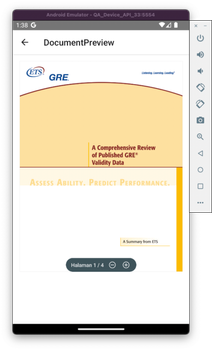
PDF Reader
To start using PDF Reader Component on your app, you can use this component from the sdk and wrapped using your own component:
PDFReader(
  base64Source,
  onPressLink,
  onLoadProgress,
  maxHeight, // default '100%
  maxWidth // default '100%'
)
Example :
import { PDFReader } from '@squantumengine/react-native-sqekyc';

...
<View style={{ width: '100%', height: 490 }}>
  <PDFReader
    base64Source={base64Source}
    onPressLink={onPressLink}
    onLoadProgress={onLoadProgress}
  />
</View>
...
Preview
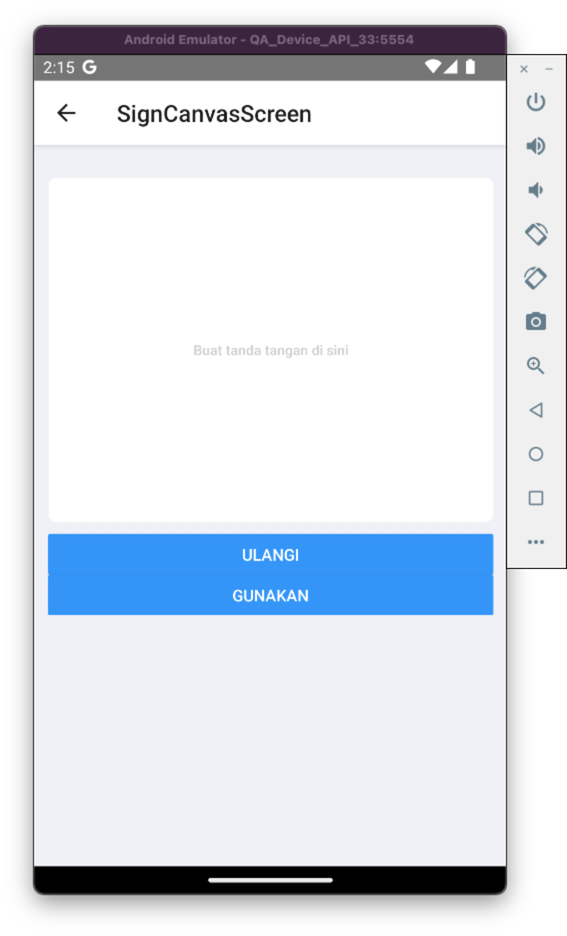
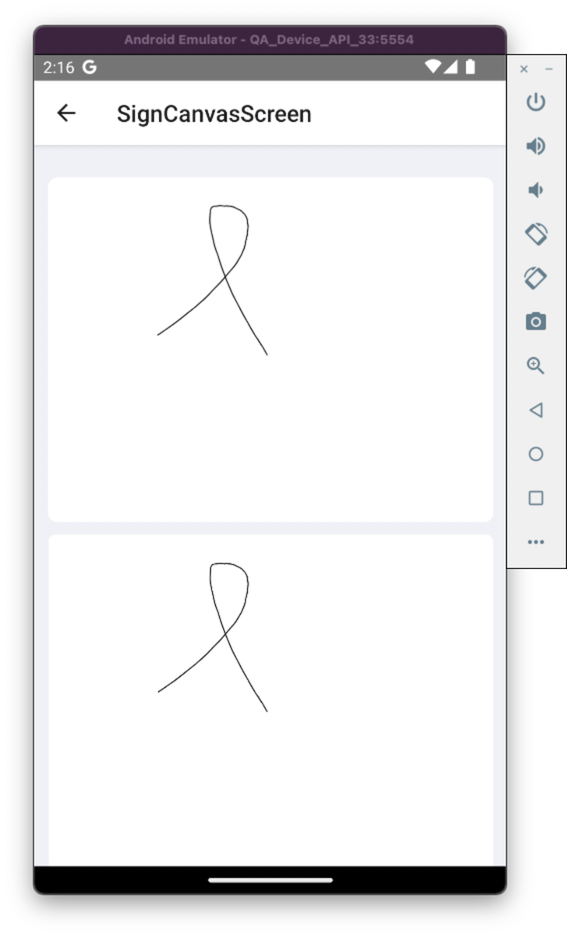
Signing Canvas
To start using Signing Canvas on your app, you can use this component from the sdk and wrapped using your own component.
SigningCanvas(
  onBegin,
  onEnd,
  onOK,
  minLineWidth, // default '2'
  maxLineWidth, // default '2'
  penColor,
  clearSignatureRef,
  confirmSignatureRef,
  imageType, // default 'image/png'
  backgroundColor // default 'transparent'
)
There is two separated method for remove and confirm the signature :
- Remove the signature
ref.current.clearSignature()
- Confirm the signature
ref.current.confrimSignature()
Example :
import { useRef } from 'react';
import { SigningCanvas } from '@squantumengine/react-native-sqekyc';

  // You have to define the Ref for each action
  const clearSignatureRef = useRef({});
  const confirmSignatureRef = useRef({});

  // For removing current signature
  const handleClearAction = () => {
    clearSignatureRef.current.clearSignature();
  };

  // To Confirm the signature
  // will return The signature image as base64 format from `onOk` props
  const handleConfirmAction = () => {
    confirmSignatureRef.current.confrimSignature();
  };

...
<View style={{ height: 300 }}>
  <SigningCanvas
    clearSignatureRef={signatureRef}
    confirmSignatureRef={confirmSignatureRef}
    onBegin={() => setScrollEnabled(false)}
    onEnd={() => setScrollEnabled(true)}
    onOK={(signatureImage) => setSignatureImage(signatureImage)}
    penColor="#000"
  />
</View>
Preview