Mobile SqeOcr SDK
SqeOcr SDK is an SDK which provides functionalities to make the OCR process be easier. This document will guide you to integrate SqeOcr SDK in your project.
Mobile SDK
Get your Application Keys
When you integrate OCR sdk, you will need some of the details from it to communicate with it. You can get this details from any of our engineering/product representative.
You will need the following for each env (staging and production):
-
Client Id
-
SQE SDK Config file
- File Format: [Client Id].sqesdk.config
Configure OCR with Expo Project
For expo project, we have provided config-plugin to make integration of native modules can be done smoothly. Structure of the config-plugin:
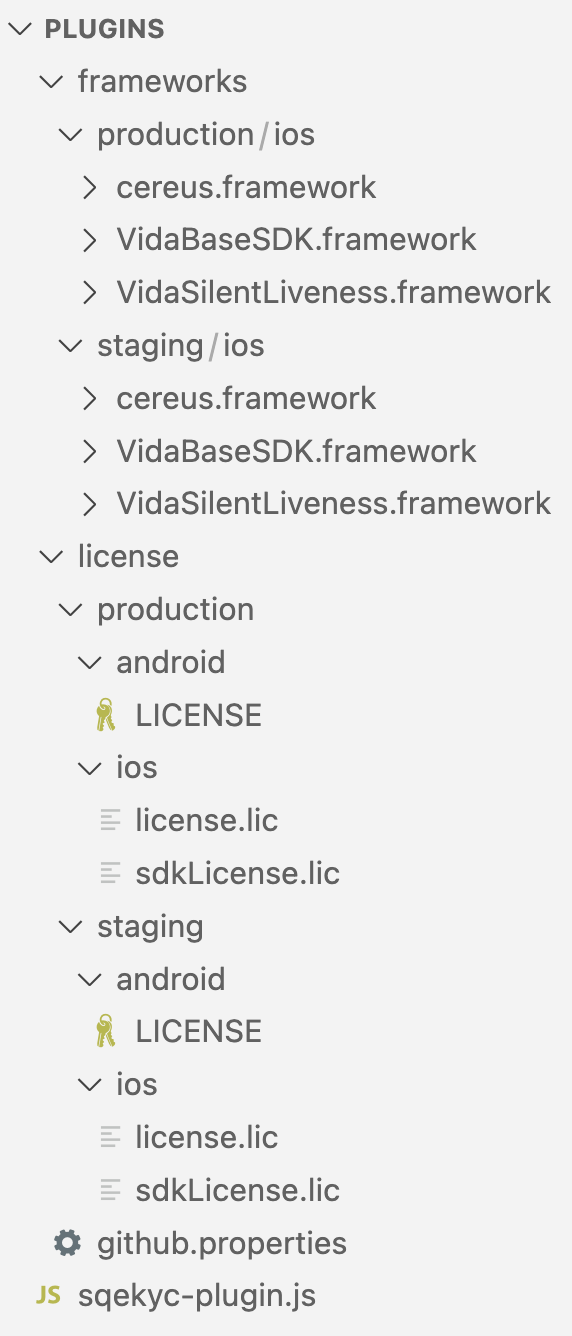
For the config-plugin, it requires:
-
License file with the correct app id and per platform. So Android and iOS has different license filename, Android with “LICENSE” file and iOS with “license.lic” and “sdkLicense.lic“ file. 1 license can be only used for 1 app, if you have different app id for staging and production, you need to prepare 2 license files. For example, for staging app, the app id is com.sample.staging and for production you use com.sample, so you need 1 license for com.sample.staging and another one for com.sample.
-
Add the sqeocr-plugin.js to your app.json file. You can set staging or production as the value for the env
...
"plugins": [
    [
        "./plugins/sqeocr/sqeocr-plugin.js",
        {
        "env": "staging"
        }
    ],
],
... -
You can run npx expo prebuild to apply config-plugin
Install SQEOCR React Native SDK
Run the following command within your project directory to install the OCR React Native SDK: Yarn :
yarn add @squantumengine/react-native-sqeocr
or NPM :
npm install @squantumengine/react-native-sqeocr
Please note: use the exact version, such as "1.0.2", during SDK installation.
Dependencies Installation
In the SDK there are some of the libraries that need to be installed in your app:
Yarn
yarn add react-native-compressor
- In your app.json, in plugin part add react-native-compressor
Expo Install
npx expo install react-native-compressor
- In your app.json, in plugin part add react-native-compressor
plugin: ["react-native-compressor"]
Configure the OcrProvider Component
To integrate SQEOCR with your Expo app, you can wrap the root component with OcrProvider which you can import from the SDK and you have to fill the env props with supported environment such as : production or staging. It also exposes helper methods to do OCR process which you can access using the useOcr() hook.
You also need to pass your client-id, this value can be asked to SQE team. ClientID is mandatory and can’t be blank.
return (
   <OcrProvider clientId={'your-client-id'} isEnableSDK={true/false}>
      <App/>
    </OcrProvider>
  );
The OcrProvider component takes the following props as input:
- clientId: Which you can get from the SimasID engineering/product representative.
- isEnableSDK: This can disable the OcrProvider and render children without context. It defaults to
true, making all methods from sqekyc unavailable.
OcrProvider stores the authentication state of your users and the state of the SDK — whether SimasID is ready to use or not. It also exposes helper methods to log in and log out your users, which you can access using the useOcr() hook.
Configure Android Project
Add SDK config file in Android project
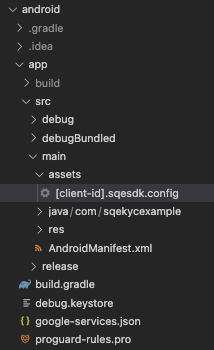
This configuration file holds encrypted settings tailored to each client. Kindly integrate the file in the Android project by including the specified configuration file. This files should be stored in assets folder of the app.
Two configuration files are supplied—one for staging and one for production. To identify the correct environment, refer to the configuration file name, as the Client Id varies for each environment.
Add Native SDK dependency
React Native SDK depends on Android Native SDK which stored in our local Maven repository. For this to work you need to specify the url to the repository in android build.gradle file:
allprojects {
    repositories {
        maven {
            url "file://${rootDir}/../node_modules/@squantumengine/react-native-sqeocr/android/repo"
        }

        google()
        mavenCentral()
        jcenter()
    }
}
Configure iOS Project
Add some configuration in Podfile
If you are not using Sentry and Datadog library in your app
Add this pre_install hook in your Podfile:
target '<Your Target Name>' do

  # Put below `use_react_native` method

  pre_install do |installer|
    $dynamic_frameworks = [
      'DatadogCore',
      'DatadogInternal',
      'DatadogLogs',
      'Sentry'
    ]
    installer.pod_targets.each do |pod|
      if $dynamic_frameworks.include?(pod.name)
        puts "Overriding the build_type method for #{pod.name}"
        def pod.build_type;
          BuildType.new(:linkage => :dynamic, :packaging => :framework)
        end
      end
    end
  end

  post_install do |installer|
    $datadog_frameworks = [
      'DatadogCore',
      'DatadogInternal',
      'DatadogLogs'
    ]
    installer.pods_project.targets.each do |target|
      if $datadog_frameworks.include?(target.name)
        target.build_configurations.each do |config|
          config.build_settings['BUILD_LIBRARY_FOR_DISTRIBUTION'] = 'YES'
        end
      end
    end
  end

end
If you are using Sentry or Datadog library in your app
// still not supported yet, please contact sdk developer
Usage
OCR Progress State
To get the current state progress when OCR is proccessing you can use this method:
import { useOcr } from '@squantumengine/react-native-sqeocr';

...
 const { doKtpOcr } = useOcr();

  const ocrProgressCallback = (progress) => {
    //Get the progress state callback from this funtion params
  };

  const ocrCompressedImageCallback = (image) => {
    //Get the compressed image callback from this funtion params
  };

 const extractTextFromKtp = () => {
  const response = await doKtpOcr(
    `base64_image`,
    `access_token`,
    `user-id-01`,
    ocrProgressCallback,
    ocrCompressedImageCallback,
    10000
  );
 }
...
State Description
| State Name | Description |
|---|---|
INITIATE_OCR_IMAGE | Start OCR function |
CALLING_API_CONFIGURATION | Call Get Config API for threshold image OCR |
VALIDATE_IMAGE_OCR | Validating image based on configuration threshold such as min/max size, type image, checking blurriness and brightness image. |
COMPRESSING_IMAGE | Check and Compress the image if the image size more than maximum size threshold from configuration |
CALLING_API_OCR | Call API and extracting OCR data from STNK/KTP |
SUCCESS_PROCESSING_OCR_STNK / KTP | Success extracting OCR data from STNK/KTP |
ERROR_PROCESSING_OCR_STNK / KTP | Failed extracting OCR data from STNK/KTP |
KTP OCR
To do KTP OCR from your app, you can use this method:
const response = await doKtpOcr(
    base64Image,
    accessToken,
    refUserId,
    ocrProgressCallback,
    ocrCompressedImageCallback,
    timeOut
);
Example
import { useOcr } from '@squantumengine/react-native-sqeocr';

...
 const { doKtpOcr } = useOcr();

  const ocrProgressCallback = (progress) => {
    //Get the progress state callback from this funtion params
  };

  const ocrCompressedImageCallback = (image) => {
    //Get the compressed image callback from this funtion params
  };

 const extractTextFromKtp = () => {
  const response = await doKtpOcr(
    `base64_image`,
    `access_token`,
    `user-id-01`,
    ocrProgressCallback,
    ocrCompressedImageCallback,
    10000
  );
 }
...
Request Parameters
| Field | Description |
|---|---|
accessToken | SQEID authorization token |
base64Image | the KTP image in base64 encoded format |
refUserId | Unique Identifier of business unit user |
ocrProgressCallback | Callback to get the progress state OCR |
ocrCompressedImageCallback | Callback to get compressed image |
timeOut | Time out in milliseconds. If not set, then the default value will be used from the base configuration of the SDK. |
KTP Image should be in landscape, for example:

Response
| Field | Value |
|---|---|
| data | |
| base64Image | |
| ocrProgressCallback | |
| ocrCompressedImageCallback | |
STNK OCR
To do STNK OCR from your app, you can use this method:
const response = await doStnkOcr(
    base64Image,
    accessToken,
    refUserId,
    ocrProgressCallback,
    ocrCompressedImageCallback,
    timeOut
);
Example
import { useOcr } from '@squantumengine/react-native-sqeocr';

...
 const { doStnkOcr } = useOcr();

  const ocrProgressCallback = (progress) => {
    //Get the progress state callback from this funtion params
  };

  const ocrCompressedImageCallback = (image) => {
    //Get the compressed image callback from this funtion params
  };

 const extractTextFromKtp = () => {
  const response = await doStnkOcr(
    `base64_image`,
    `access_token`,
    `user-id-01`,
    ocrProgressCallback,
    ocrCompressedImageCallback,
    10000
  );
 }
...
Request Parameters
| Field | Description |
|---|---|
accessToken | SQEID authorization token |
base64Image | the KTP image in base64 encoded format |
refUserId | Unique Identifier of business unit user |
ocrProgressCallback | Callback to get the progress state OCR |
ocrCompressedImageCallback | Callback to get compressed image |
timeOut | Time out in milliseconds. If not set, then the default value will be used from the base configuration of the SDK. |
Response
| data | |
| base64Image | |
| ocrProgressCallback | |
| ocrCompressedImageCallback | |
Error Response
| errors | |
| source | |
SDK Error Codes
| Code | Description |
|---|---|
NETWORK_ERROR | When device is offline |
INVALID_IMAGE_TYPE | Incorrect types, only support .jpeg or .jpg based on config |
IMAGE_TOO_SMALL | The image size is bigger than the maximum size (image file size) ever after compression |
INVALID_IMAGE_RATIO | The ratio image is invalid because after we reduce the resolution to maximum ratio but it becomes invalid in small |
UNKNOWN_ERROR | Unknown Error |
UNKNOWN_DOCUMENT_TYPE | The document file type is not KTP or STNK |
FAILED_TO_GET_IMAGE_DIMENSION | The image resolution couldn’t be retrieved |
FAILED_TO_VALIDATE_IMAGE | One of the image validation is failed |
TIME_OUT | Request takes longer to complete than expected or allowed |
BE Error Codes
| Code | Message | Description |
|---|---|---|
| 401 | UNAUTHORIZED | Access token supplied is no longer valid |
| 404 | Invalid CLIENT_NOT_FOUND | Client Id not found |
| 400 | INVALID_JSON | Invalid jSON |
| 400 | INVALID_REQUEST | Invalid Request |
| 500 | INTERNAL_PARSING_ERROR | Something went wrong |
| 400 | STNK_NOT_DETECTED | STNK not detected |
| 400 | STNK_TOO_FAR | STNK is too far away or STNK image must be a greater or equal to 85.0% of total area image |
| 400 | STNK_TOO_DARK | Image is too dark |
| 400 | STNK_TOO_BRIGHT | Image is too bright |
| 400 | STNK_TOO_BLURRY | Image is too blurry (not yet implemented from BE) |
| 400 | VALIDATION_REQUIRED | File doesn't exist |
| 400 | VALIDATION_BASE64_JPEG | File is not JPEG |
| 400 | VALIDATION_BASE64_ORIGINAL_SIZE_ITE_KB | Image too small < 50kb |
| 400 | VALIDATION_BASE64_ORIGINAL_SIZE_GTE_KB | Image file size is too big > [N]kb based on config |
STNK OCR VALIDITY
To improve our in-house STNK OCR system, from BU side required to send back the STNK data which already corrected by the user. This should be fire and forget call, so no need to process the result from the mobile app side. Also all of the fields in the dataStnk are optional since this is only needed to improve our internal machine learning. You can use this method:
doStnkOcrValidity(
    dataStnk,
    metaId,
    accessToken,
    timeOut
)
Example
import { useOcr } from '@squantumengine/react-native-sqeocr';

...
 const { doStnkOcrValidity } = useOcr();

const onValidateStnk = () => {
    doStnkOcrValidity(dataStnkOCR, metaId, accessToken).then((response) => {
      ...
    }).catch((error) => {
      ...
    });
  }
...
Request Parameters
| dataStnk | |
metaId | It is an ID from the meta object inside the result of OCR STNK; you can retrieve it like this: (data.meta.id). |
accessToken | SQEID authorization token |
timeOut | Time out in milliseconds. If not set, then the default value will be used from the base configuration of the SDK. |
Response
| data | |
Error Response
| TIME_OUT | |